> ## Documentation Index
> Fetch the complete documentation index at: https://docs.monnet.ai/llms.txt
> Use this file to discover all available pages before exploring further.
# Slack
> Connect your team's Slack so people can take part in motions from their DMs — without a Monnet login.
Connecting Slack lets people who aren't Monnet users take part in your motions straight from Slack. Monnet sends them a DM when a motion needs them, and their reply flows back into the motion automatically — so a teammate can contribute without ever opening Monnet.
## What connecting Slack gives you
* **Member sync** — every user in your connected Slack workspace can be brought into the Monnet workspace as a Slack-only member.
* **Motion links in DMs** — Monnet pings the right people in Slack when a motion needs their input, and their replies come back into the motion.
* **A path to full membership** — a Slack-only member who follows a motion link and signs up is promoted to a full Monnet member (see [Join from a Slack link](#join-from-a-slack-link)).
## Connect Slack
From your workspace, open **Settings → Integrations**. Under **Slack**, click **Connect Slack**. This redirects you to Slack's consent screen (OAuth); after you approve, you're brought back to Monnet.
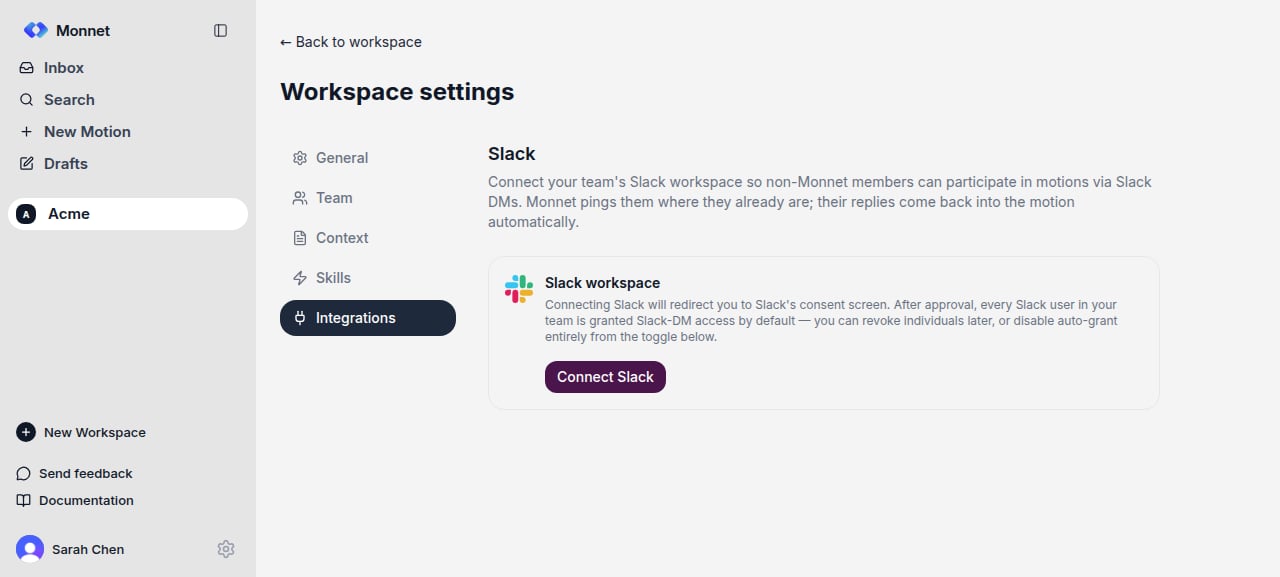 Any workspace member can start the connection. Each Slack workspace can be linked to only one Monnet workspace at a time.
When you connect from settings, every Slack user in your team is granted Slack-DM access **by default**. You can revoke individuals later, or turn off auto-grant from the toggle described below.
## Import and manage members
After connecting, manage who participates from **Manage Slack members**. Each Slack user appears in a table with three columns:
* **Slack user** — who they are in Slack.
* **Function** — defaults to their Slack title and is editable here; whatever you set overrides the value shown in the **Team** tab.
* **Access** — a per-user toggle. Turn it off to revoke a user — they lose Slack-DM access and disappear from member dropdowns.
Whether members start with access depends on the **auto-grant** setting:
* **Auto-grant on (default after connecting from settings):** everyone in the Slack workspace is granted by default; toggle off anyone you don't want.
* **Auto-grant off:** new Slack users are **not** granted automatically — you toggle access on per user before they can participate.
Use the **Auto-grant new Slack users** toggle to switch between the two. Changing it requires workspace admin/owner permissions. Save your changes when done.
Imported Slack users join as Slack-only **members**. The import flow controls access and function, not workspace roles — set roles (owner / admin / member) from the **Team** tab.
## Join from a Slack link
When Monnet DMs a Slack-only member about a motion, the message includes a link. Following it:
1. Opens the motion in Monnet.
2. Prompts the person to sign up if they don't have an account yet.
3. On sign-up, promotes them from a Slack-only member to a full Monnet member of the workspace.
From then on they can use Monnet directly, in addition to Slack.
## Troubleshooting
Each Slack workspace can be connected to only one Monnet workspace at a time. If you see **"Slack workspace already linked"**, the Slack workspace is connected elsewhere — disconnect it from that Monnet workspace first, then reconnect here.
If you cancelled on Slack's consent screen, just click **Connect Slack** again. If the connection link expired or returned an error, start over from **Settings → Integrations** — Monnet generates a fresh link each time.
Some Slack accounts don't expose an email. Those users are flagged in the members table and may need their email added in Slack before they can be granted access.
Any workspace member can start the connection. Each Slack workspace can be linked to only one Monnet workspace at a time.
When you connect from settings, every Slack user in your team is granted Slack-DM access **by default**. You can revoke individuals later, or turn off auto-grant from the toggle described below.
## Import and manage members
After connecting, manage who participates from **Manage Slack members**. Each Slack user appears in a table with three columns:
* **Slack user** — who they are in Slack.
* **Function** — defaults to their Slack title and is editable here; whatever you set overrides the value shown in the **Team** tab.
* **Access** — a per-user toggle. Turn it off to revoke a user — they lose Slack-DM access and disappear from member dropdowns.
Whether members start with access depends on the **auto-grant** setting:
* **Auto-grant on (default after connecting from settings):** everyone in the Slack workspace is granted by default; toggle off anyone you don't want.
* **Auto-grant off:** new Slack users are **not** granted automatically — you toggle access on per user before they can participate.
Use the **Auto-grant new Slack users** toggle to switch between the two. Changing it requires workspace admin/owner permissions. Save your changes when done.
Imported Slack users join as Slack-only **members**. The import flow controls access and function, not workspace roles — set roles (owner / admin / member) from the **Team** tab.
## Join from a Slack link
When Monnet DMs a Slack-only member about a motion, the message includes a link. Following it:
1. Opens the motion in Monnet.
2. Prompts the person to sign up if they don't have an account yet.
3. On sign-up, promotes them from a Slack-only member to a full Monnet member of the workspace.
From then on they can use Monnet directly, in addition to Slack.
## Troubleshooting
Each Slack workspace can be connected to only one Monnet workspace at a time. If you see **"Slack workspace already linked"**, the Slack workspace is connected elsewhere — disconnect it from that Monnet workspace first, then reconnect here.
If you cancelled on Slack's consent screen, just click **Connect Slack** again. If the connection link expired or returned an error, start over from **Settings → Integrations** — Monnet generates a fresh link each time.
Some Slack accounts don't expose an email. Those users are flagged in the members table and may need their email added in Slack before they can be granted access.