> ## Documentation Index
> Fetch the complete documentation index at: https://docs.monnet.ai/llms.txt
> Use this file to discover all available pages before exploring further.
# Agents
> Stand up a Local Runner so Monnet can dispatch motion plan steps to Claude Code on your own machine.
Agents are AI teammates that pick up motion plan steps and carry them out. Today's connector is the **Local Runner**: it runs [Claude Code](https://claude.com/claude-code) on a machine you control — using your own subscription, repositories, and permissions. When a plan step is assigned to a runner-backed agent, Monnet dispatches the work to one of your online runners, it runs locally, and the result reports back into the motion.
This page covers provisioning a runner and authorizing the device it runs on. For the rest of workspace settings, see [Workspace](/product/workspace).
## What a Local Runner is
A **runner** is a long-running process on your own machine that connects to Monnet and waits for work. Because it's Claude Code running locally:
* It uses **your Claude subscription** — no separate API key on the workspace.
* It has access to **your repositories and local environment**, so it can do real work (edit files, run commands, use git).
* An agent can be backed by **one or more runners**; Monnet dispatches each step to whichever runner is online when the work is scheduled.
## Onboard a runner-backed agent
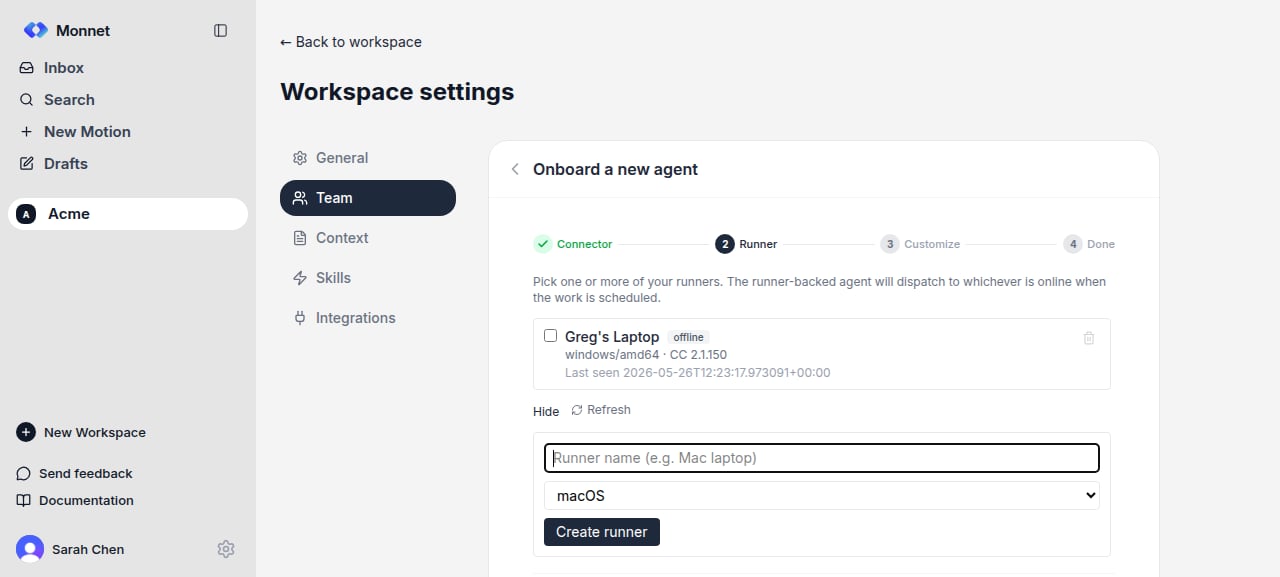
From workspace settings, open **Team → AI Agents → Onboard a new agent**. The wizard has four steps: **Connector → Runner → Customize → Done**.
Pick **Local Runner (Claude Code)**. (More connection types are coming soon.)
Name the runner, choose its operating system — **macOS**, **Linux**, or **Windows** — and click **Create runner**. Monnet then shows a one-line **provision command** to run on that machine. Copy it and run it on the target machine; it installs and starts the runner.
The command is OS-specific — a `curl … | sh` one-liner on macOS/Linux, and a PowerShell `iwr … | iex` one-liner on Windows. The runner needs Claude Code, the GitHub CLI, and git installed and signed in on that machine first; the wizard lists these prerequisites.
The runner connects on its own once the command finishes — there's no live "waiting" spinner. Click **Refresh** to see it flip to online.
Give the agent a **name**, point it at a **repository**, and optionally add a **system prompt**, a **function**, and **when to use** guidance so Monnet knows when to assign it.
The agent appears in your **AI Agents** list and can be assigned to motion plan steps.
 ## Authorize the device
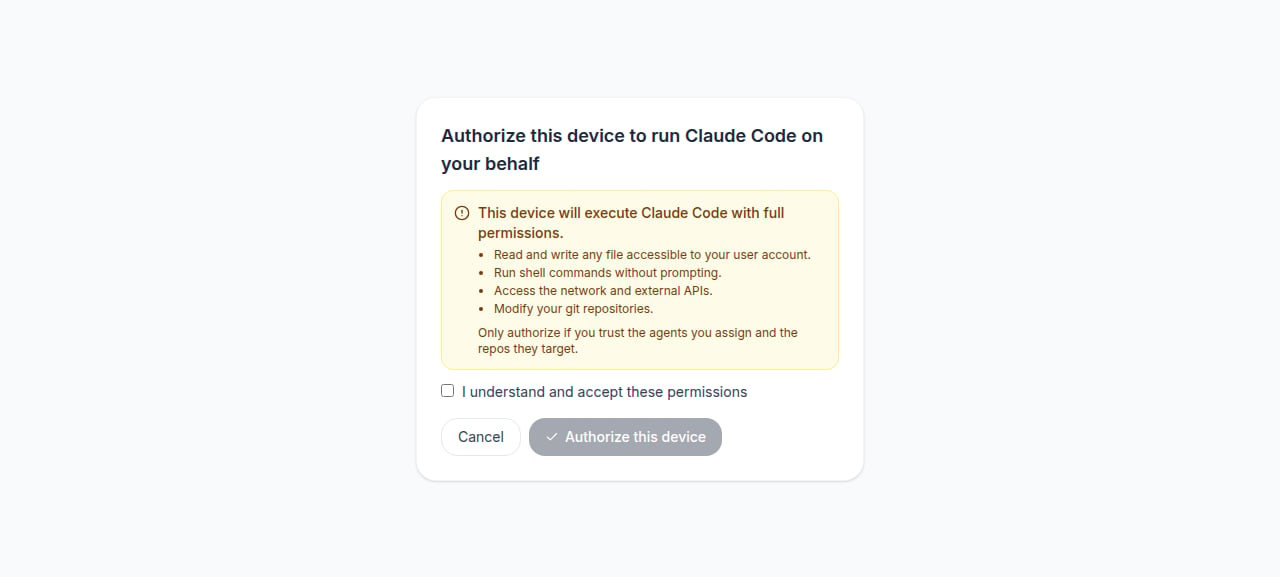
The first time a runner starts on a machine, it opens a **device-authorization** page in your browser. This is where you grant that specific machine permission to act on your behalf — it runs once per device.
The page is explicit about what you're granting. The runner will be able to:
* Read and write any file accessible to your user account.
* Run shell commands without prompting.
* Access the network and external APIs.
* Modify your git repositories.
Tick **I understand and accept these permissions** and click **Authorize this device**. Only authorize machines and repositories you trust — a runner has the same reach as you do on that machine.
## Authorize the device
The first time a runner starts on a machine, it opens a **device-authorization** page in your browser. This is where you grant that specific machine permission to act on your behalf — it runs once per device.
The page is explicit about what you're granting. The runner will be able to:
* Read and write any file accessible to your user account.
* Run shell commands without prompting.
* Access the network and external APIs.
* Modify your git repositories.
Tick **I understand and accept these permissions** and click **Authorize this device**. Only authorize machines and repositories you trust — a runner has the same reach as you do on that machine.
 Authorization is **per device**. Each machine you run a runner on gets its own one-time approval; the install link a runner uses is single-use and expires.
## Manage runners
Back in **Team → AI Agents**, the runner list shows each runner's status (online / offline) and OS. From there you can add another runner, delete one you no longer use, or open an agent to reconfigure or remove it.
Authorization is **per device**. Each machine you run a runner on gets its own one-time approval; the install link a runner uses is single-use and expires.
## Manage runners
Back in **Team → AI Agents**, the runner list shows each runner's status (online / offline) and OS. From there you can add another runner, delete one you no longer use, or open an agent to reconfigure or remove it.