> ## Documentation Index
> Fetch the complete documentation index at: https://docs.monnet.ai/llms.txt
> Use this file to discover all available pages before exploring further.
# Inbox
> Find the motions that need your input across every workspace you're part of.
The **Inbox** is your home page in Monnet. It collects the motions that need your attention across every workspace you're a member of — so you never have to check each workspace individually.
## Open the inbox
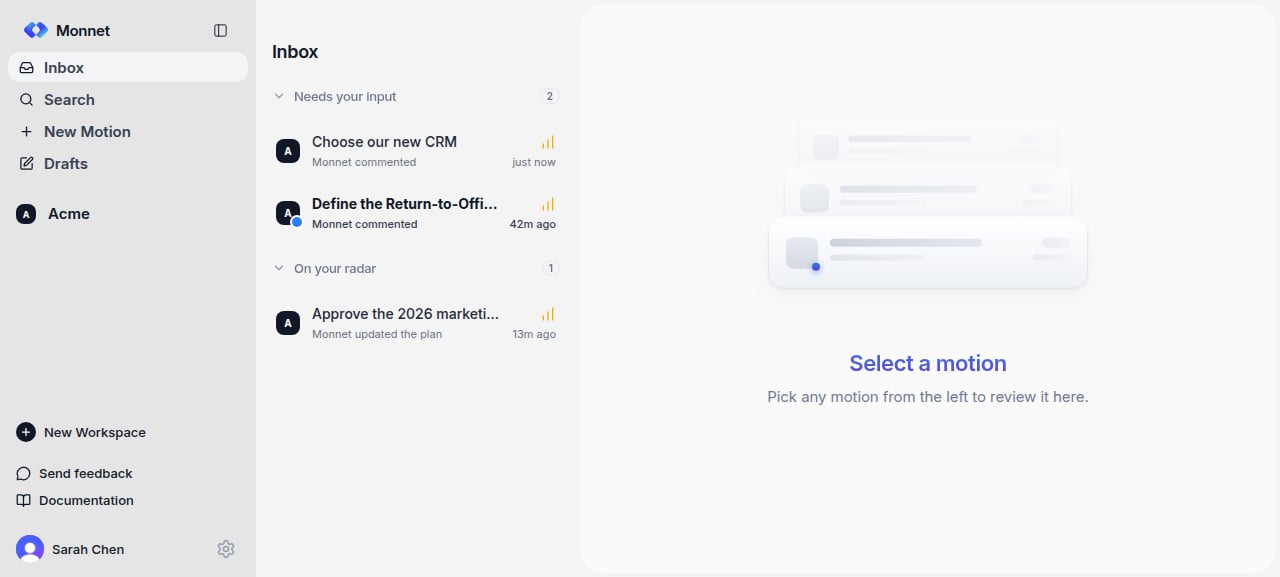
The inbox is the default page when you sign in. You can get back to it anytime by clicking the **Inbox** icon at the top of the sidebar.
 ## Read the feed
The inbox groups the motions that involve you into two buckets, so the things that actually need an action sit above the things you're only following:
* **Needs your input** — motions waiting on an action from *you*: your approval or decision, a reply you've been asked for, or a draft you're still authoring. Start here.
* **On your radar** — motions you're involved in that are moving forward but don't need anything from you right now (someone else is acting, or you've been mentioned for awareness).
Each item shows:
* The **workspace** name and logo, and the motion number (e.g., `Acme / #42`).
* The **summary** (or the first line of the prompt if no summary yet).
* The motion **status** — Draft / Open / Closed.
* The **priority** — colored dot for Critical / Normal / Low.
* A short **activity summary** with timestamp (e.g., "Sarah approved step 2 · 2h ago").
* **Editor avatars** — the first three, with a `+N` badge for the rest.
* A left border **accent** if the item is unread.
The feed is paginated. Use the controls at the bottom to load older items.
Click an item to open the motion page.
## Dismiss a motion from the feed
If a motion is cluttering your feed and you don't want to act on it, hover over it and click the **X** on the right. The motion is archived from your feed — it's not deleted from the workspace, and you can still access it from the workspace's motion list.
## See motions shared with you
The sidebar has a **Shared with you** section that lists motions from workspaces you're **not** a full member of — usually motions where you've been added as an **External** member. Click to open; click **Leave motion** (with confirmation) if you no longer want to be on it.
## Accept or decline a workspace invitation
Pending workspace invitations appear in the sidebar under **Pending invitations** with an amber icon. Click an invitation to see the workspace details and **Accept** or **Decline**.
Once accepted, the workspace joins your sidebar list and its motions start appearing in your For You feed.
## Read the feed
The inbox groups the motions that involve you into two buckets, so the things that actually need an action sit above the things you're only following:
* **Needs your input** — motions waiting on an action from *you*: your approval or decision, a reply you've been asked for, or a draft you're still authoring. Start here.
* **On your radar** — motions you're involved in that are moving forward but don't need anything from you right now (someone else is acting, or you've been mentioned for awareness).
Each item shows:
* The **workspace** name and logo, and the motion number (e.g., `Acme / #42`).
* The **summary** (or the first line of the prompt if no summary yet).
* The motion **status** — Draft / Open / Closed.
* The **priority** — colored dot for Critical / Normal / Low.
* A short **activity summary** with timestamp (e.g., "Sarah approved step 2 · 2h ago").
* **Editor avatars** — the first three, with a `+N` badge for the rest.
* A left border **accent** if the item is unread.
The feed is paginated. Use the controls at the bottom to load older items.
Click an item to open the motion page.
## Dismiss a motion from the feed
If a motion is cluttering your feed and you don't want to act on it, hover over it and click the **X** on the right. The motion is archived from your feed — it's not deleted from the workspace, and you can still access it from the workspace's motion list.
## See motions shared with you
The sidebar has a **Shared with you** section that lists motions from workspaces you're **not** a full member of — usually motions where you've been added as an **External** member. Click to open; click **Leave motion** (with confirmation) if you no longer want to be on it.
## Accept or decline a workspace invitation
Pending workspace invitations appear in the sidebar under **Pending invitations** with an amber icon. Click an invitation to see the workspace details and **Accept** or **Decline**.
Once accepted, the workspace joins your sidebar list and its motions start appearing in your For You feed.