
Start a thread
Click New in the sidebar (or press Cmd/Ctrl + Shift + O). You get a full-page composer, not a modal. Type what’s on your mind — a decision, a problem, a half-formed idea. Examples:
The composer also lets you:
- Attach files to seed the conversation — drag and drop, paste an image, or click to browse. Common document and image types are accepted (PDF, text, CSV, Markdown, JSON, HTML, and PNG/JPG/GIF/WebP/SVG).
- Write at length — up to 10,000 characters, so you can paste real context.
A thread is a private one-to-one with Monnet. Nobody else sees it, and the lock in the composer says so. It stays private until you bring someone in.
From thread to idea
When you’re ready to shape the idea into a proposal, Monnet writes a document and the thread becomes an idea. During web onboarding, Monnet drafts a sprint one-pager and plan after clarifying your idea. An idea has:- a summary — the one-liner shown in feeds, the inbox, and the sidebar;
- a document — the full proposal, where context, rationale, and resolution live;
- a plan — the execution steps;
- a priority — Critical / Normal / Low.
Edit the document
While the idea is a Draft, you can edit inline:- Summary — the one-liner.
- Document — a rich-text (WYSIWYG) editor, not raw markdown. The toolbar gives you headings, bold and italic, lists, links, and tables; select text and a formatting bubble appears.
- Priority — from the dropdown in the right panel, changeable at any time.
Kick off
Click Kick off in the action banner. The idea moves from Draft to Open:- All idea members can see it.
- Monnet activates the plan and starts coordinating with assignees.
- The people on the first steps get notified.
Before you kick it off, the idea is visible only to you and any editors you’ve added.
Add members
Open the Members area and click Add member. You can add a workspace member from your team list, or invite someone by email — they’ll get a link to join the idea. Two roles:- Editor — edit the document, manage members, attach files, kick off, close, and reopen the idea.
- Commenter — comment and chat with Monnet.
Sharing
Workspace ideas have a general access setting, separate from the member list:Sharing an idea with the workspace also makes it eligible for the nightly company brain ingest once it’s closed. Restricted ideas are never ingested.
Share a free trial idea
On an idea started without signing in, click Share to copy a public link. Anyone with it can read the document and attachments, including before kickoff. Public trial links do not make your workspace ideas public. Recipients can open the link with or without an account. Each gets their own chat with Monnet. Signed-out visitors must sign up to comment or reply in the activity feed. Public links do not expire. Clearing the current idea starts a new conversation; it does not revoke the link.Read the tabs
An idea page shows its content as a row of tabs under the title. If the row overflows, scroll it sideways. The three-dot menu has a button that lists every tab.- Brief — the idea document. It’s always first.
- Agent files — one tab for each file an agent produced, in the order they were created. These tabs are read only.
- Comments — the discussion and the files your team uploads.
Present an idea
Click Present in the top right to walk through the idea one step at a time. The button appears once the idea has at least one agent file. Present opens in the same window at a page of its own. The link is the idea link with/present at the end, and it has the same access rules as the idea. In a public workspace, Share copies this link by default.
- Title slide — shows the workspace and playbook name, the idea name, how many steps and agents it covers, and about how long the walkthrough takes. Click Start to begin.
- Slides — each agent file is a slide. The slide shows the part of the file above its first horizontal line. The rest is collapsed under it, and you can expand it. HTML files, such as prototypes and sketches, are shown as they are, in a sandbox.
- Navigation — use Previous and Next, or the left and right arrow keys. A thin bar at the top shows your progress. Click the icon at the top left to open a column of slide previews.
- Chat — a collapsed box at the bottom right. It’s the same chat, with the same history, as on the idea page.
- Exit — click Exit or press Esc to go back to the idea.
Choosing any card closes Present.
Work through the plan
Open the plan with the list icon in the header, next to the chat icon. It replaces the chat panel until you switch back. Steps, assignees, dates, approvals — see Plan. When something is waiting on you, a smaller version of the plan stays on the page: Kick off, Close, Approve, or a step assigned to you that’s in progress.Compare options and decide
When a decision comes down to a few settled alternatives — which vendor, which architecture, which path — Monnet lays them out as options: side-by-side cards in the document, each with a description and the trade-offs that matter. One may be flagged as recommended.Vote on an option
Anyone on the idea can react to a card with 👍 or 👎. Click to cast, click again to undo. Counts update live, and hovering shows who voted. Voting signals where the team leans — it doesn’t decide the idea.Mark an option as decided
When the team has converged, an editor clicks Mark as decided on the winning card. It’s highlighted, the alternatives dim, and voting on them closes. The decision is recorded in the feed, and Monnet carries it forward — usually by updating the plan to execute what you chose. Marking a different card later moves the decision; only one option in a set is decided at a time.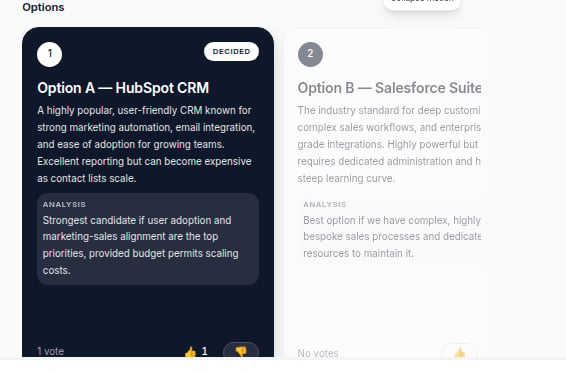
Options on an idea: side-by-side cards with vote pills and Mark as decided.
Discuss
The public feed and your private chat with Monnet both live on the idea page. See Talking with Monnet.Attach files
Use the Files section in the Comments tab to upload contracts, mockups, spreadsheets, screenshots. Files are scoped to the idea and visible to all its members. Monnet reads them, and an agent triggered on the idea receives them too. Files that agents produce don’t appear here. Each one gets its own tab. Click the X next to a file to remove it.Versions
Every edit while the idea is Open creates a version. Open the Activity timeline in the right panel and click a version to see the diff against the current document. Restore rolls back — as a new version, so nothing is lost.Typing is saved continuously, but a version is only committed when you finish editing. Reloading the page doesn’t create one.
Follow, star, or mute
- Bell toggle — subscribe to an idea’s updates or mute it. You’re subscribed by default to ideas you’re involved in.
- Star — pin a thread, idea, or brain page to the Starred section of the sidebar. Starred items are yours alone and you can reorder them by dragging.